

How to Post a Job on JobsBob Portal (Step-by-Step Guide)
Written By JobsBob Editor Team
Updated 27 March 2026
JobsBob is India’s 1st spam-free & easy-to-use job platform that helps employers post jobs and connect with the right candidates quickly. As one of the growing free job portals, it enables you to create structured job listings and reach relevant talent efficiently. With a guided and user-friendly interface available on both desktop and mobile, JobsBob ensures that even first-time employers can post jobs with ease and confidence. Each step helps improve your job post and attract better candidates. In this guide, we will walk you through the step-by-step process of posting a job on one of the leading job portals, so you can hire faster and more effectively.
A Complete Job Posting Process on JobsBob
Use the following steps to create your job listing and start receiving applications easily. The guided process of this platform helps to complete your job listing in just a few minutes.
Step 1: Get Started with Your Account
Option A: Create an Employer Account (For New Users)
If you are new to JobsBob, start by creating your employer account to begin posting jobs.
Sign Up: Open https://www.jobsbob.com/ and click on “Sign Up” and enter your basic details, such as your name, email address, and contact number, to create your account.
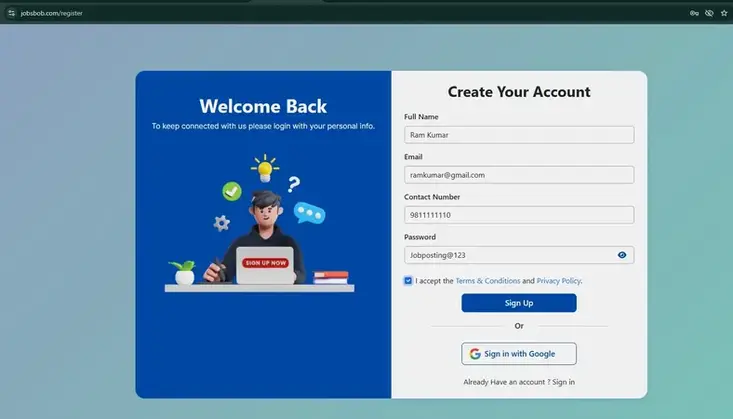
OTP Verification: After entering your details, verify your email by entering the OTP (One-Time Password) sent to your registered email address to activate your account.
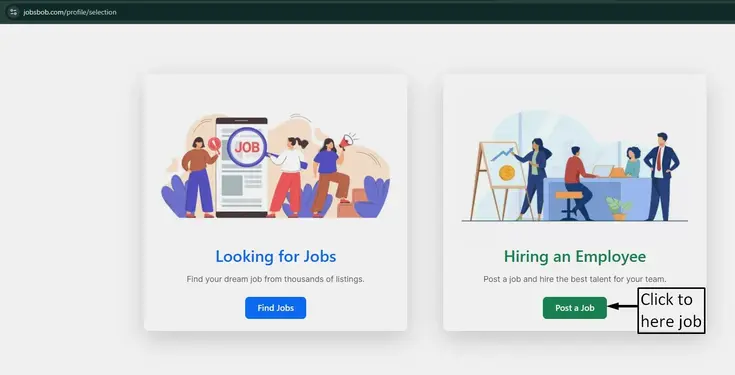
Select Role: Once verified, select “Hiring an Employee” (On Desktop) or “Hiring someone” (On Mobile) to continue as an employer and access job publishing features.
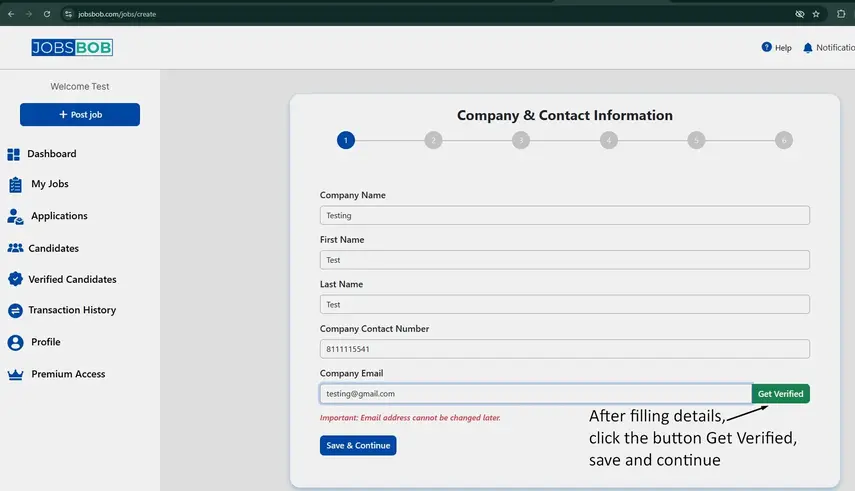
Fill out Company Details: Next, enter your company name, location, and any other relevant information required to complete your profile. Provide your contact details, such as a phone number or email address, so candidates can easily reach you and trust your job posting. Once all the details are complete, your employer account will be ready, and you can post your job.
Option B: Log In to Your Account (For Existing Users)
If you already have an employer account, click on “Login” or use this link to sign in: [https://www.jobsbob.com/login]
Enter Your Details: Enter your registered email and password to log in to your account. After logging in, you will be redirected to your employer dashboard, where you can manage jobs and applications.
Start Posting Job: From the dashboard, click on the “Post Job” button to start creating a new job listing.
If you're using a different email in the company details, verify your company email to build trust with candidates and improve your job postings.
Step 2: Add Your Job Details
Begin by entering the basic information about the job you want to post. This is the first step in the job posting form and helps candidates understand the role and location clearly.
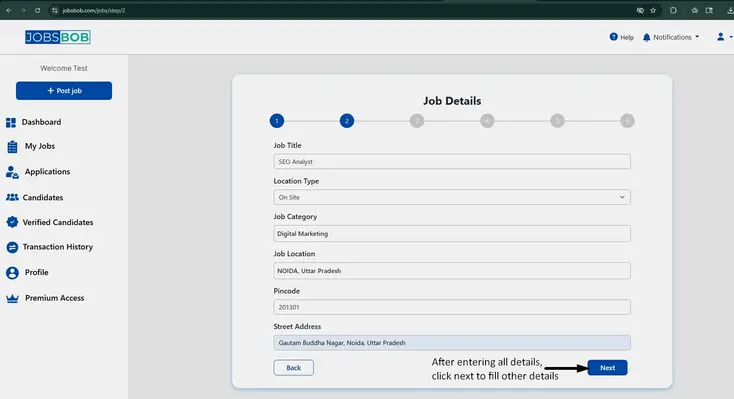
Job Title: Enter the Job Title, which should clearly describe the role (for example, “2D Animator” instead of a generic title).
Location Type: Select the Location Type (e.g., On-site, Remote, Hybrid, Work from Home) from the dropdown based on how the job will be performed.
Job Category: Choose the appropriate Job Category that best matches the role you are hiring for.
Job Location: Provide the Job Location, including city and state, so candidates know where the job is based.
Full Address: Enter the Pincode and Street Address to give a more precise job location.
After filling in all the required fields, click or tap on the “Next” button to proceed to the next step. These details are important as they help candidates quickly understand the job role, location, and relevance.
Step 3: Define Job Type & Hiring Needs
In this step, specify how the job will work and outline your hiring requirements. This helps candidates understand the nature of the job and how urgently you are hiring.
Job Type: Select the Job Type (e.g., Full-time, Part-time, Contract, Internship) based on the role you are offering.
Work Schedule: Choose the Work Schedule / Shift (e.g., Day Shift, Night Shift, Flexible) to inform candidates about working hours.
Number of People: Enter the Number of people to hire to indicate how many candidates you are looking for.
Recruitment Timeline: Select the recruitment timeline (e.g., Urgently Hiring, Within 1 Month) from the dropdown based on how soon you want to fill the position.
After filling in all the required fields, click or tap on the “Next” button to continue to the next step. These details help candidates understand job availability, work schedule, and hiring urgency before applying.
Step 4: Add Salary, Benefits & Job Description
At this stage, you need to provide complete details about the salary, perks, and responsibilities of the job. This information plays a key role in helping candidates decide whether to apply.
Salary Range: Enter the Minimum and Maximum Salary (e.g., ₹10,000 – ₹50,000) to give candidates a clear idea of the pay range.
Salary Unit: Select the Salary Unit (e.g., Per Month / Per Year) based on how the salary is offered.
Supplement Pay: Add any Supplement Pay (e.g., Shift allowance, Bonus pay, Overtime pay) to highlight extra earnings.
Job Benefits: Include Benefits (e.g., Health Insurance, Paid Time Off, Work from Home) to make your job more attractive.
Job Description: Write a clear and detailed Job Description, including roles, responsibilities, and expectations.
After entering all the details, click or tap on the “Next” button to move to the next step. Providing complete salary and job details helps candidates understand the role better and increases the chances of receiving relevant applications.
Step 5: Set Application Preferences
In this step, you can customize how you want to receive applications and communicate with candidates. These settings help you manage responses more efficiently.
Contact Details: Add your Mobile Number if you want candidates to contact you directly (optional). Enable WhatsApp updates if you prefer receiving notifications or communication via WhatsApp.
Email Communication: Provide your email address for candidate communication (optional).
Resume Requirement: Choose whether a resume is required from applicants before they apply.
Application Deadline: Set the Application Deadline to define how long the job will remain open. Make sure the application deadline is set to a future date and not the same as the posting date, so candidates have enough time to apply.
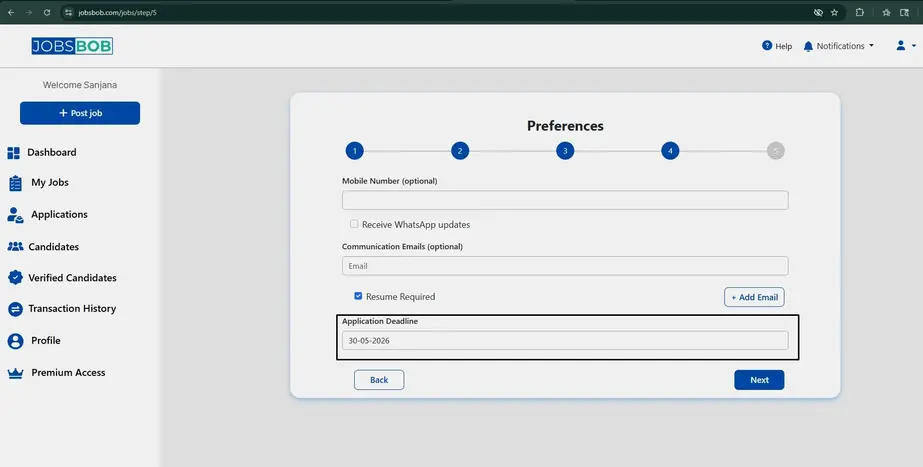
Once you have configured the settings, click or tap on the “Next” button to continue. These preferences allow you to control how candidates apply and help streamline your hiring process.
Step 6: Set Candidate Requirements
In this step, you need to specify the qualifications, skills, and experience required for the role. This helps ensure that only relevant candidates apply for the job.
Qualifications: Enter the required Qualifications in the input field. Click on the “+” icon to add multiple qualifications if needed (you can also remove entries using the delete option (On Desktop) and cross “×” icon (On Mobile) ).
Languages: Add preferred Languages using the input field and “+” button.
Skills: Select or add relevant Skills (e.g., PHP, Communication) based on the job requirements.
Experience Level: Choose the required Experience Level (e.g., 3–5 Years) from the dropdown.
Once all the details are added, click or tap on the “Next” (On Desktop) or “Done” (On Mobile) button to complete this step. Providing clear and accurate requirements helps filter candidates and improves the quality of applications.
Step 7: Review and Publish Your Job
At this stage, you will see a complete preview of your job post, including all the details you have added in the previous steps.
Review Job Details: Carefully go through each section, such as job details, job type, salary, preferences, and requirements, to ensure everything is accurate
Edit Information: If you need to make any changes, you can click on the edit (✏️) icon next to each section and update the information. Make sure all important details like salary, location, and requirements are correct before proceeding
Submit and Publish: Once you are satisfied with all the details, click on Submit Job (On Desktop) or tap on Post Job (On Mobile). After submission, your job will be published and will start reaching potential candidates.
Manage Your Jobs
After posting your job, you can easily manage it from the Jobs Posted (On Desktop) or Posted Jobs (On Mobile) section in your dashboard. From this section, you can:
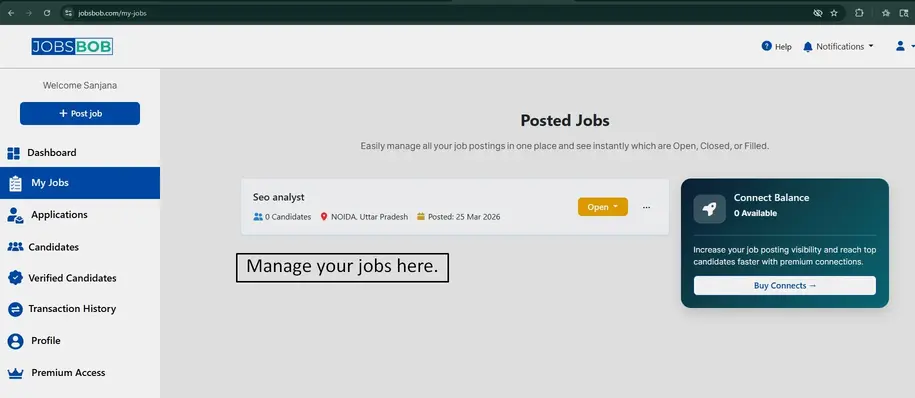
- View all job listings: See all the jobs you have posted in one place with complete details. This helps you easily manage and review your active and past job postings.
- Check applicants: Track the number of candidates who have applied for each job. You can review their profiles and identify the most suitable candidates for your requirements
- Monitor hiring progress: Keep track of your hiring stages, including shortlisted, interviewed, and hired candidates. This helps you stay organized throughout the recruitment process.
Track job status: Check whether your job is currently active or closed at any time. You can manage or update the status based on your hiring needs.
Tips to Attract Better Candidates
Creating a clear and detailed job post can significantly improve the quality of candidates you receive. As one of the growing job posting sites, JobsBob helps you attract more relevant and high-quality applications. Follow these simple recruitment tips:
-
Use a clear job title: Avoid generic titles. Use specific roles like “Sales Executive” or “Graphic Designer” to attract the right candidates. This helps your job appear in relevant searches and improves visibility to the right audience.
-
Mention salary details: Adding a salary range increases trust and improves the number of applications. Candidates are more likely to apply when they clearly understand the compensation offered.
-
Write a detailed job description: Clearly explain roles, responsibilities, and expectations so candidates understand the job better. A well-written description reduces confusion and attracts more suitable applicants.
-
Add benefits and perks: Mention benefits like incentives, flexible hours, or work-from-home options to make your job more attractive. Highlighting perks can make your job stand out from other similar listings.
-
Set realistic requirements: Avoid adding too many strict requirements so that more suitable candidates can apply. This increases your chances of receiving a larger and more diverse pool of applicants.
-
Respond promptly to applicants: Timely responses enhance the candidate experience and increase hiring success. Quick communication also helps you secure the best candidates before others do.
Simplify Your Hiring with JobsBob
Posting a job on this platform is a simple and efficient process that helps you connect with the right candidates quickly. By following a step-by-step process of job posting and providing clear job details, you can attract more relevant applicants and enhance your hiring outcomes. With its user-friendly interface and guided workflow, JobsBob makes recruitment easier for employers. Start posting your job today and streamline your hiring process with better efficiency and results.